Building apps with Flutter is fast and enjoyable, but as your project grows, you’ll eventually face bugs, slow rendering, or performance bottlenecks. Debugging effectively and optimizing your app’s performance is critical to ensuring a smooth user experience.
In this post, we’ll cover practical debugging techniques and performance optimization tips every Flutter developer should know.
Debugging in Flutter
1. Use print() Wisely
A quick way to debug is by adding print() statements, but overusing them can clutter your logs. Instead, consider using Flutter DevTools or structured logging with packages like logger.
import 'package:logger/logger.dart';

final logger = Logger();

logger.i("Info message");
logger.w("Warning message");
logger.e("Error message");
2. Flutter DevTools
Flutter comes with a powerful DevTools suite that helps with:
- Widget Inspector → visualize the widget tree.
- Performance Overlay → detect jank and dropped frames.
- Memory & CPU Profiler → identify leaks and bottlenecks.
Run with:
flutter run --profile
Then open DevTools in your browser for in-depth analysis.
3. Breakpoints & Debugger
Using VS Code or Android Studio, set breakpoints in your Dart code to pause execution and inspect variables. This helps track down logical errors more effectively than just logging.
Performance Optimization Tips
1. Minimize Rebuilds
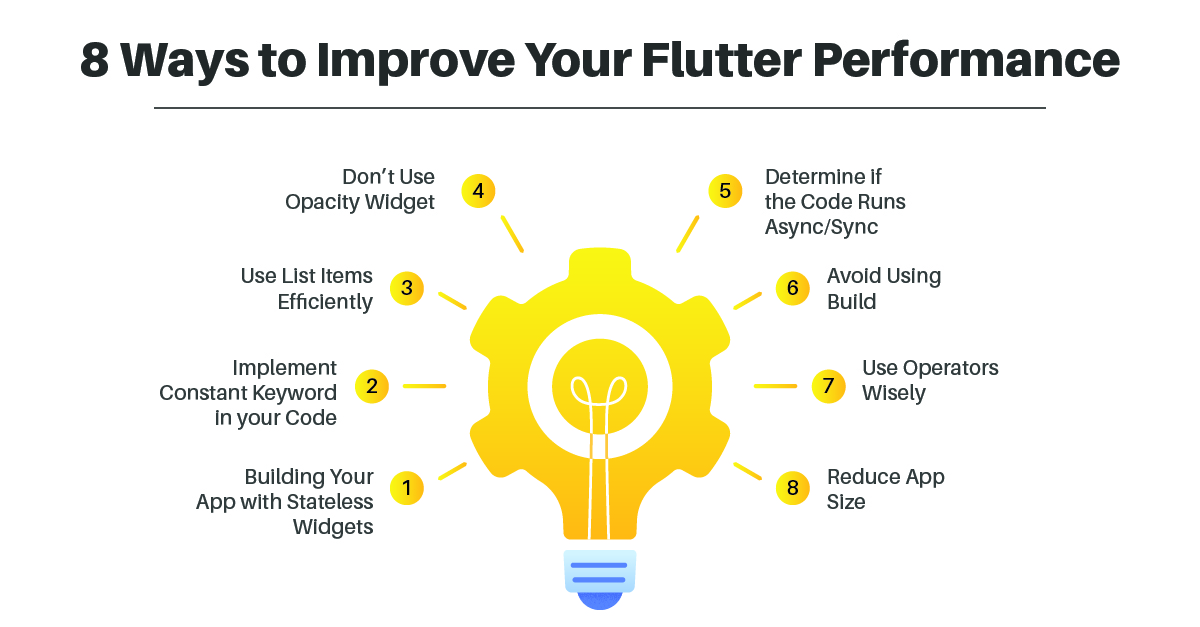
Unnecessary widget rebuilds slow down apps. Use const constructors whenever possible and leverage const widgets to avoid re-rendering.
const Text("Hello World");
Also, consider using ValueListenableBuilder or Selector (from provider) to rebuild only parts of the UI.
2. Optimize Images
Large, uncompressed images are a common performance issue.
- Use
cached_network_imageto reduce network requests. - Compress images with tools like TinyPNG before bundling.
- Prefer
AssetImageorMemoryImagewhen possible.
3. Use ListView & Lazy Loading
When rendering long lists, always use ListView.builder or GridView.builder for lazy loading instead of building all items at once.
ListView.builder(
  itemCount: items.length,
  itemBuilder: (context, index) {
    return ListTile(title: Text(items[index]));
  },
);
4. Reduce Overdraw
Overlapping widgets can cause Flutter to draw multiple layers unnecessarily. Use tools like the Performance Overlay to detect overdraw and refactor complex UI layouts.
5. Optimize Build Modes
- Debug mode → slower, with extra checks.
- Profile mode → useful for performance testing.
- Release mode → fastest, optimized build for production.
Always measure performance in profile or release mode, not debug mode.
Bonus: Useful Packages for Debugging & Performance
- logger → structured logging.
- flutter_bloc / provider → manage state efficiently.
- dio → better network request handling.
- sentry_flutter → crash reporting.
Conclusion
Debugging and performance optimization are essential skills for any Flutter developer. By leveraging Flutter DevTools, breakpoints, and structured logging, you can track down bugs quickly. Meanwhile, using techniques like lazy loading, image optimization, and minimizing rebuilds ensures your app runs smoothly across devices.
With these strategies in place, you’ll spend less time fixing bugs and more time building great features.