
Flutter’s power lies in its widgets—the building blocks of every app. As a beginner, understanding the most commonly used widgets will give you a strong foundation for creating beautiful and functional applications. In this article, we’ll cover the Top 10 Flutter widgets every beginner should know.
1. Container
The most versatile widget in Flutter. It can hold child widgets, add padding, margins, alignment, and decoration.
Container(
  padding: EdgeInsets.all(16),
  color: Colors.blue,
  child: Text("Hello Flutter"),
);
2. Text
Used to display strings of text. It supports styling such as color, size, weight, and alignment.
Text(
  "Welcome to Flutter",
  style: TextStyle(fontSize: 20, fontWeight: FontWeight.bold),
);
3. Row & Column
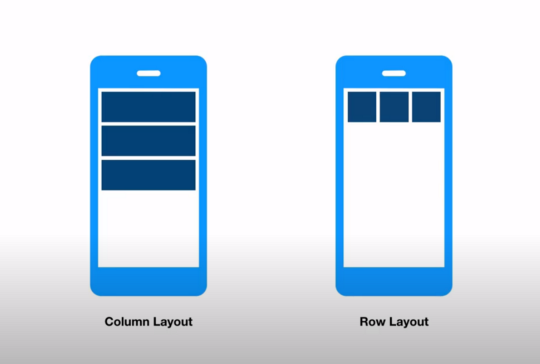
These are layout widgets for arranging children horizontally (Row) or vertically (Column).
Row(
  mainAxisAlignment: MainAxisAlignment.center,
  children: [
    Icon(Icons.star, color: Colors.yellow),
    Text("Starred"),
  ],
);
4. Stack
Allows widgets to overlap each other, perfect for layered designs.
Stack(
  children: [
    Image.asset("background.png"),
    Text("Overlay Text", style: TextStyle(color: Colors.white)),
  ],
);
5. ListView
Displays scrollable lists of widgets. Great for showing dynamic or long lists.
ListView.builder(
  itemCount: 10,
  itemBuilder: (context, index) {
    return ListTile(title: Text("Item $index"));
  },
);
6. Scaffold
Provides the basic structure of a Flutter screen, including AppBar, body, floating action button, and navigation drawer.
Scaffold(
  appBar: AppBar(title: Text("My App")),
  body: Center(child: Text("Hello World")),
);
7. AppBar
The toolbar at the top of a screen, usually containing titles, actions, and navigation controls.
AppBar(
  title: Text("Dashboard"),
  actions: [Icon(Icons.search)],
);
8. Image
Used to display images from assets, the internet, or memory.
Image.network(
  "https://example.com/image.jpg",
  width: 200,
  height: 200,
);
9. ElevatedButton
A commonly used button widget that adds interactivity to apps.
ElevatedButton(
  onPressed: () {
    print("Button Pressed!");
  },
  child: Text("Click Me"),
);
10. Form & TextFormField
Essential for creating input forms with validation.
Form(
  child: TextFormField(
    decoration: InputDecoration(labelText: "Enter Name"),
    validator: (value) => value!.isEmpty ? "Required" : null,
  ),
);
Conclusion
Mastering these 10 core Flutter widgets—from Container and Text to Scaffold and ListView—will set you up for success as a Flutter developer. Once you’re comfortable with these, you can explore more advanced widgets and state management tools to build professional apps.